 Nook
NookHelp centre
How to use Nook
Everything you need, step by step, with pictures of the real app. Start at the top, or jump to what you need.
Step 1
Get started
You'll be set up in about three minutes.
- Install Nook from the Google Play Store or the App Store and open it. (iPhone version coming soon.)
- Sign in, then join a group with the invite code from your admin, or start your own group.
- On Home, finish the Get set up card: add a profile photo, make your name card and set a passcode.
- Tap Hide on the card when you're done.
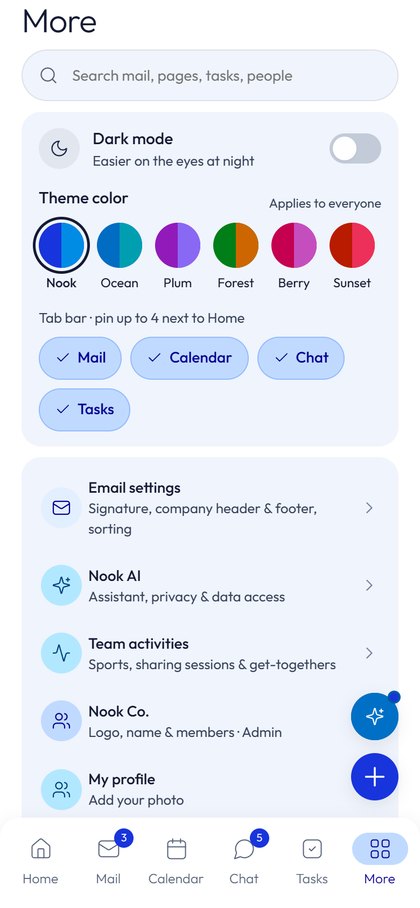
Tip: open More (bottom right) to pick a theme colour and choose which tabs sit in your tab bar.
Home
Your day at a glance
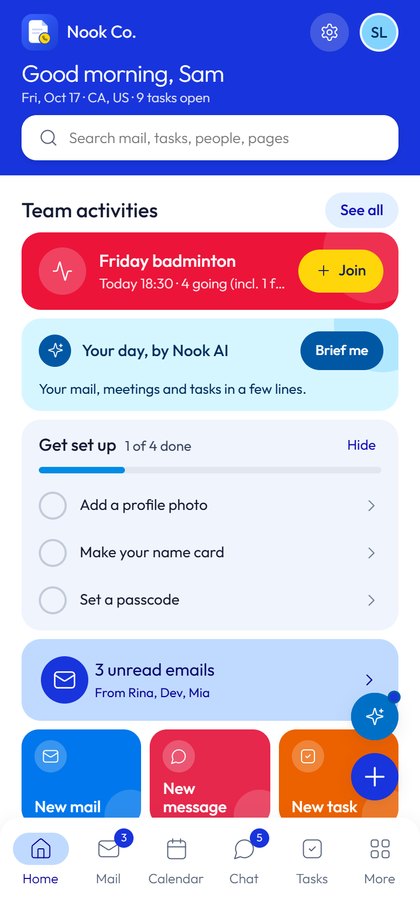
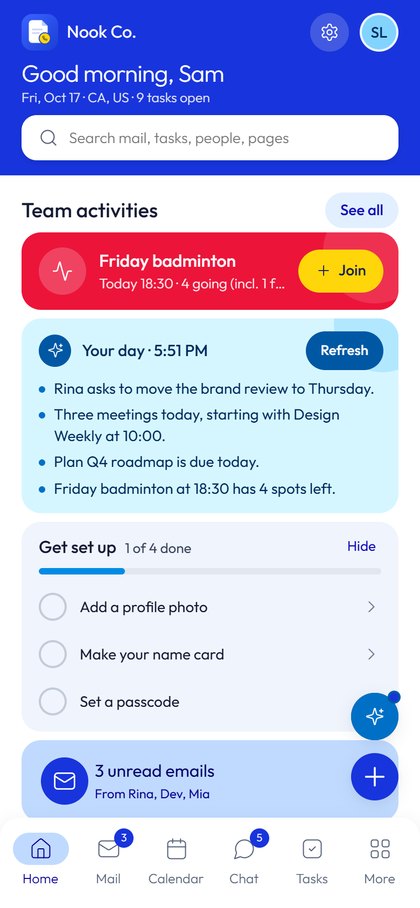
Home shows what matters today: team activities, your meetings, your tasks and unread mail.
- Brief me: Nook AI sums up your mail, meetings and tasks in a few lines.
- Shortcuts: New mail, New message and New task, right on Home.
- Tab bar: Home, Mail, Calendar, Chat, Tasks and More. Numbers show what's unread.
Make Home your own
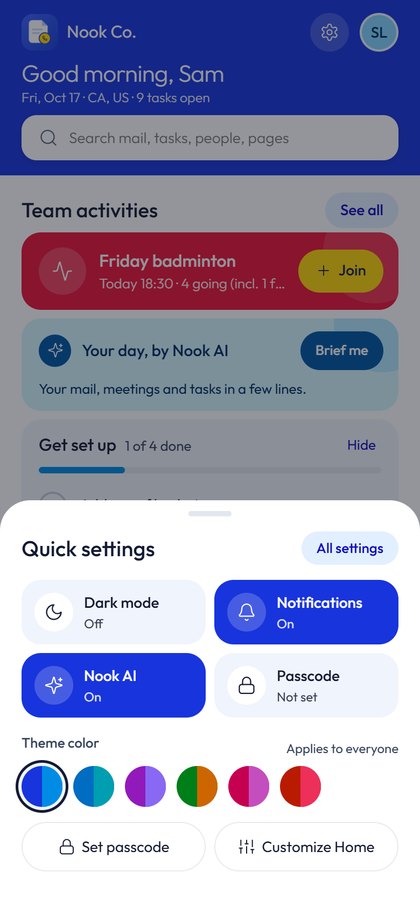
- Tap the gear icon at the top.
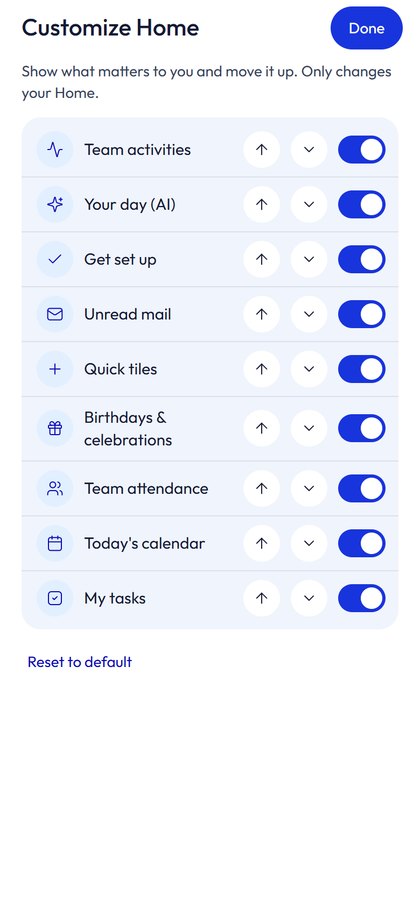
- Tap Customize Home.
- Use the switches to show or hide cards, and the arrows to reorder them. Reset to default undoes it.
Tasks
Add and track tasks
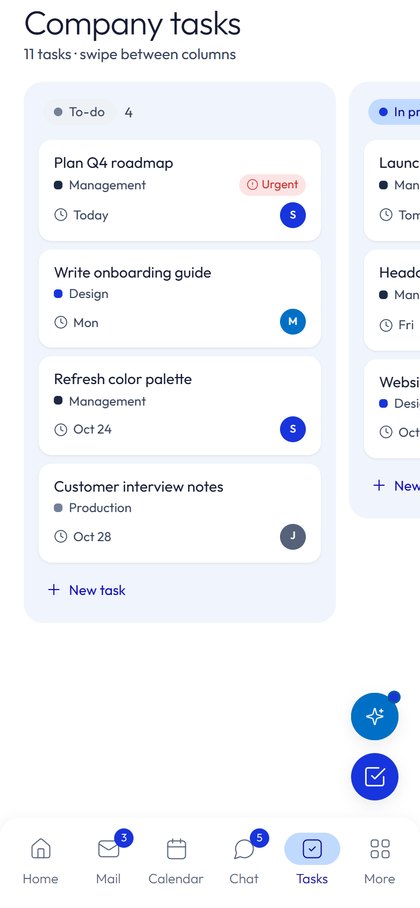
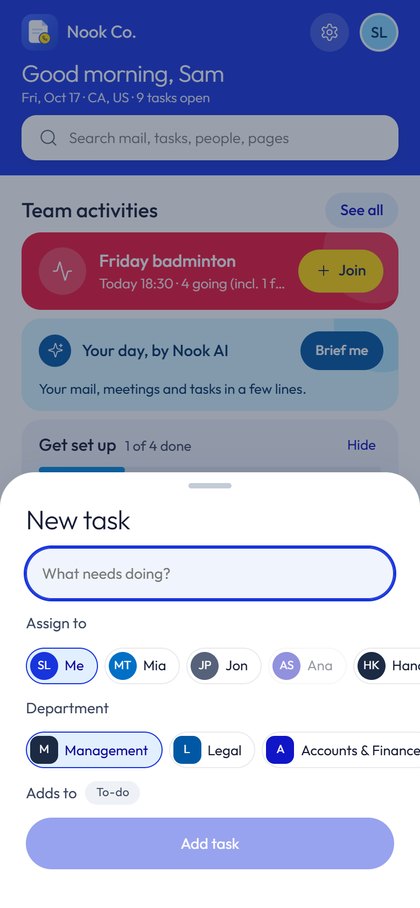
- Open Tasks, or tap New task on Home.
- Type a title, choose who it's for and the team.
- Tap Add task. It appears on the board for everyone.
- Tap a task to change it or mark it complete. Swipe left and right to move between columns.
| Label | Meaning |
|---|---|
| Urgent | Needs attention first. |
| Important | A priority. |
| Waiting | Waiting on someone or something. |
| Today, Tomorrow, a date | When it's due. |
| from Mia | Someone sent you this task. |
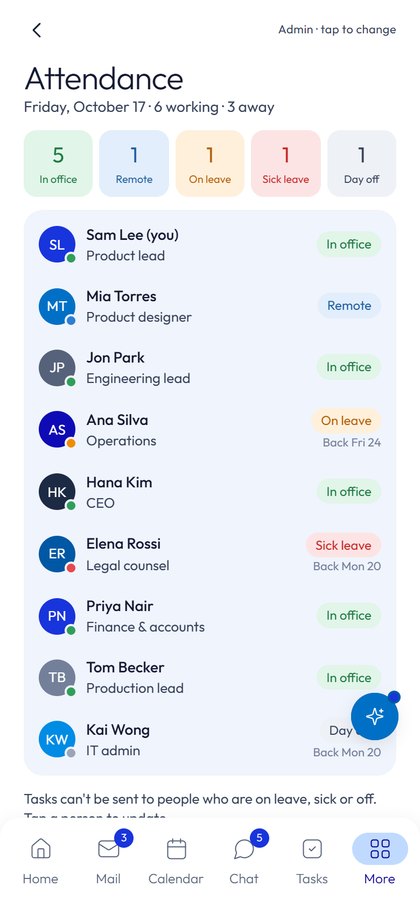
Good to know: you can't give a task to someone who is on leave, sick or off. Nook tells you, so nothing gets lost.
Chat and calls
Message and call your group
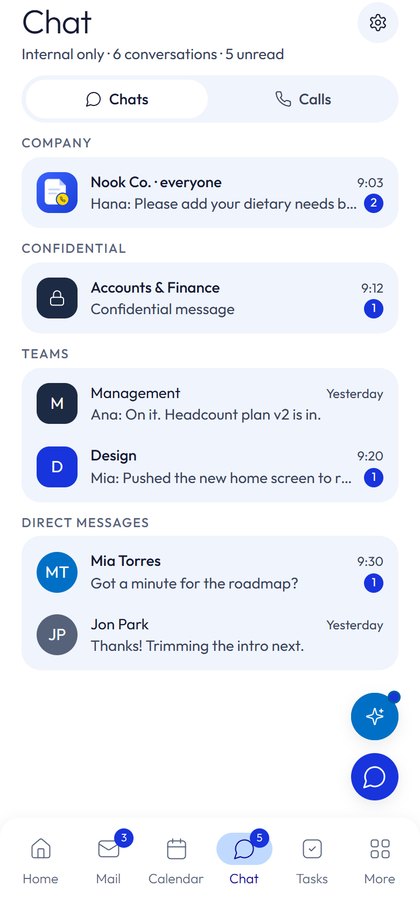
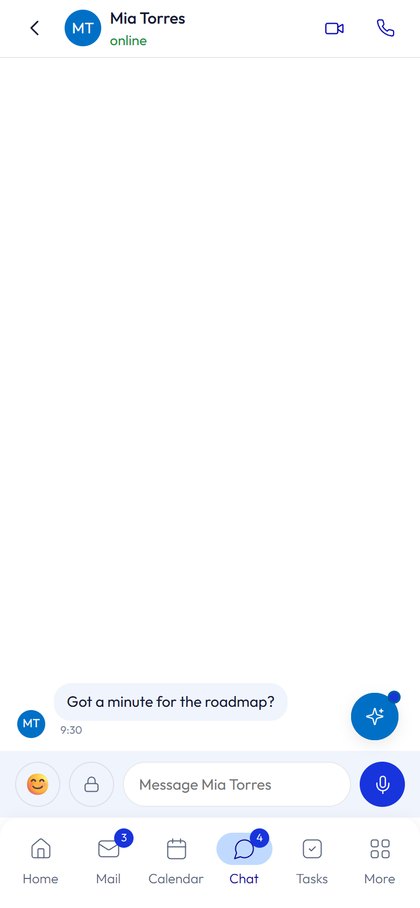
- Open Chat. Pick a company, team or direct chat.
- Type your message and send.
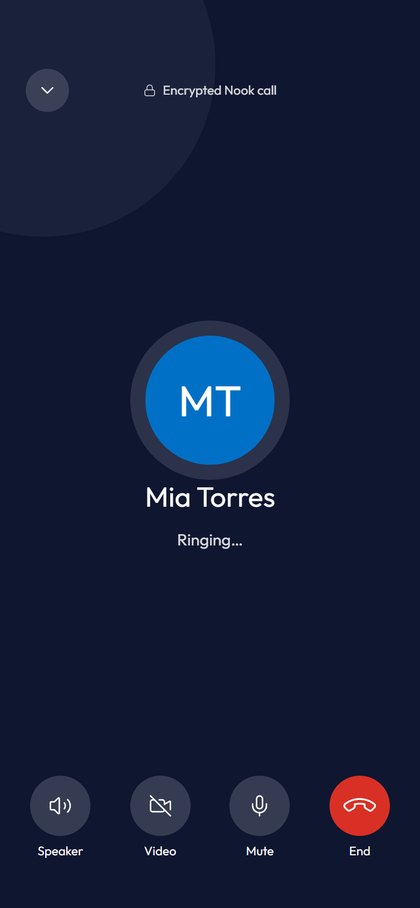
- To call, tap the phone or video icon at the top of the chat.
- During a call: Speaker, Video, Mute and End. When someone calls you: Accept, Decline or Message.
- Switch between Chats and Calls at the top.
- Confidential chats hide their messages until you tap them.
- Chats with people outside your company are marked, so you know when a message leaves the company.
Mail
One inbox for all your accounts
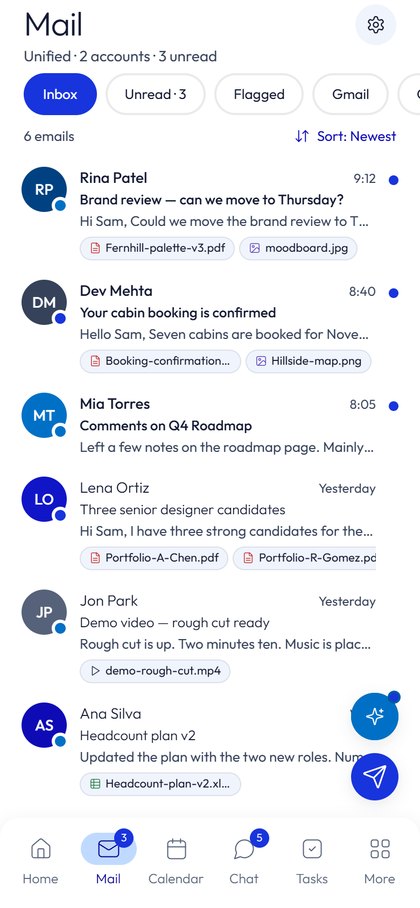
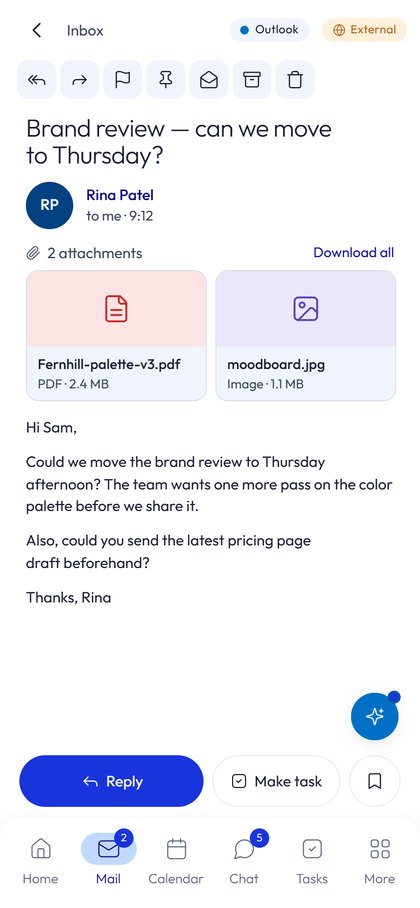
- Open Mail and tap Connect next to Gmail or Outlook. You sign in on the provider's own page; Nook never sees your password.
- Tap an email to read it, reply, or turn it into a task.
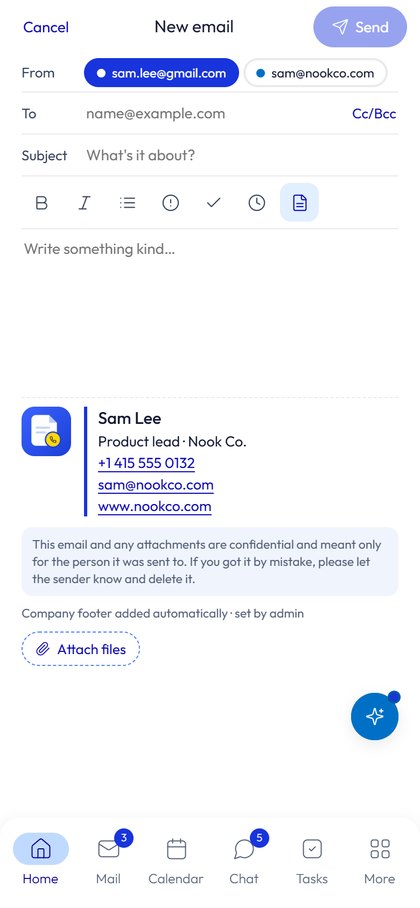
- To write: tap New mail, choose the account in From, fill in To and Subject, then send.
Heads up: Nook warns you when an email is going outside your company. Set your signature in More › Email settings.
Calendar and activities
Plan meetings and get-togethers
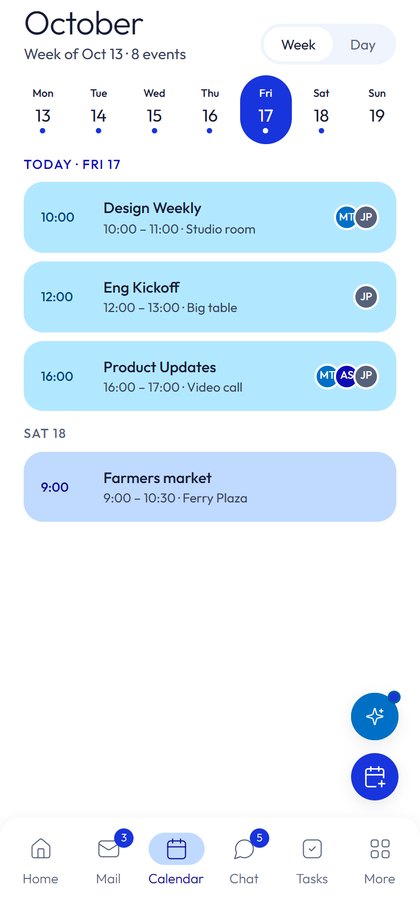
- Open Calendar and switch between Month, Week and Day.
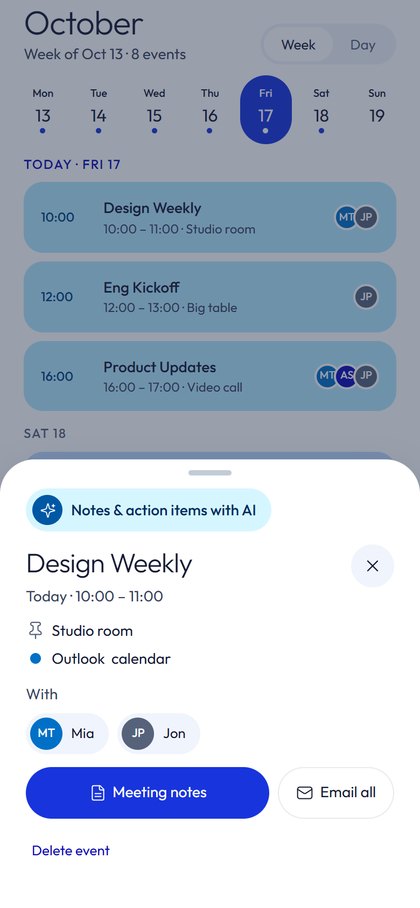
- Tap a day, then an event, to see the time, place, who's coming and meeting notes.
- From an event you can Email all attendees or delete it.
Team activities
- Tap See all next to Team activities on Home, or open More › Team activities.
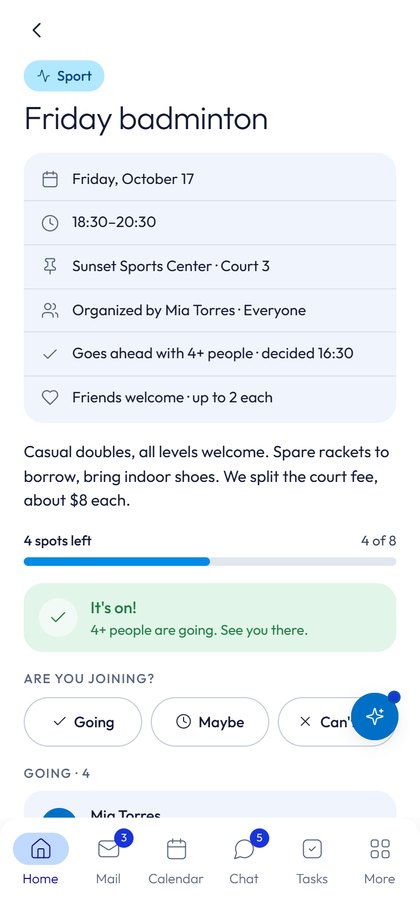
- Open one and choose Going, Maybe or Can't go.
- To post your own, tap New: type, date and time, place, number of spots and a decide-by date. Then Post.
Nook AI
Your assistant that asks first
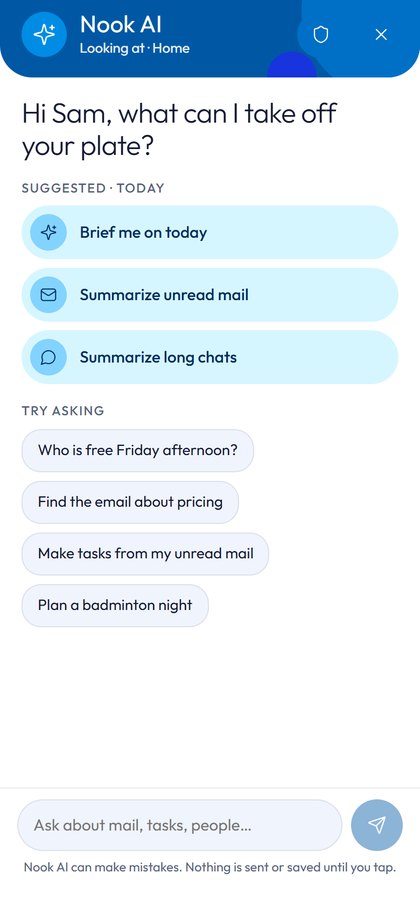
Nook AI reads only what you allow, and it never sends or saves anything by itself.
- Tap the sparkle button on any screen.
- Pick a suggestion, or type a question, like "Brief me on today" or "Find a time for a team lunch".
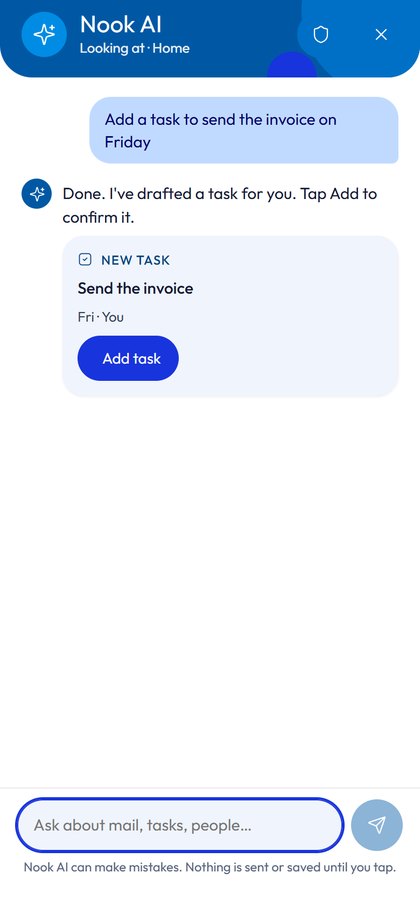
- Nook AI replies with a card (a task, meeting, reply or message).
- Check it, then tap Confirm. If you do nothing, nothing happens.
Privacy: tap the shield icon to choose what Nook AI may read. Nook AI can make mistakes, so check names, dates and times before you confirm.
Profile and name card
Share your name card
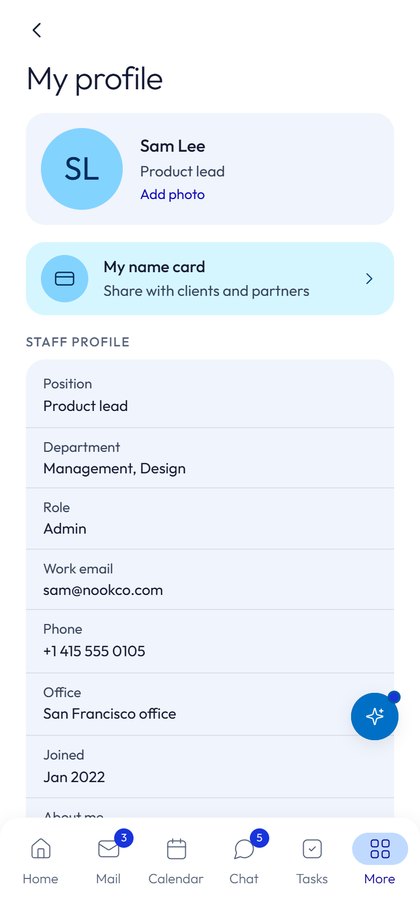
- Open More › My profile and tap Add photo.
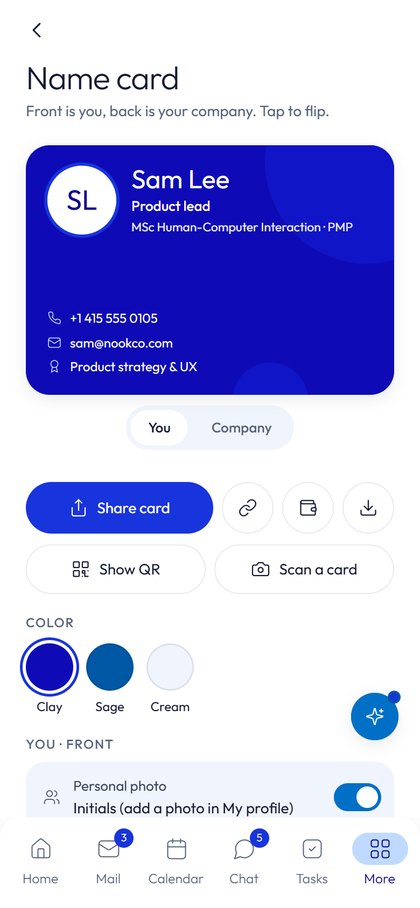
- Open your name card. Tap You or Company to flip it, and pick a colour.
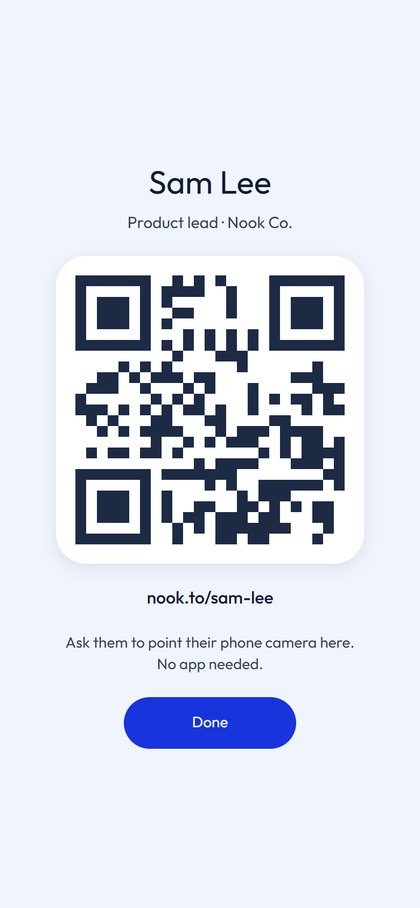
- Tap Share card to send a link, or Show QR for someone to scan. They don't need the app.
- Got someone's card? Tap Scan a card, add where you met, then Save to Contacts.
Notes and pages
Keep your notes in one place
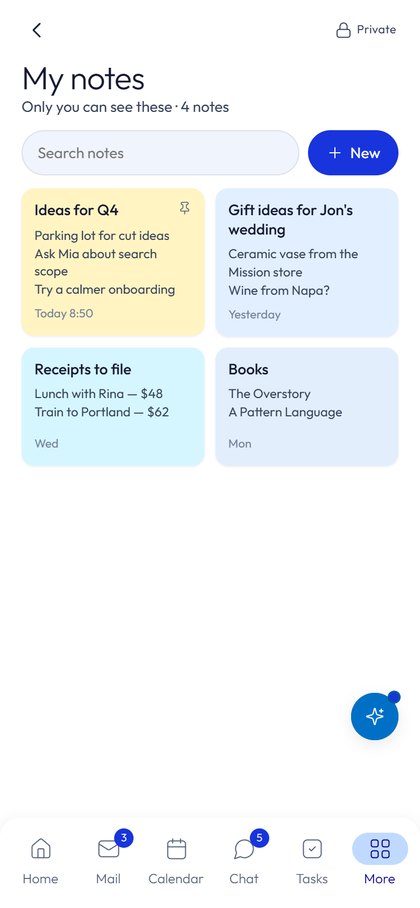
- My notes are private: only you can see them. Tap New to write one, and use search to find it later.
- Pages are shared documents for your group. You can save emails and files to a page.
Security and privacy
Lock Nook with a passcode
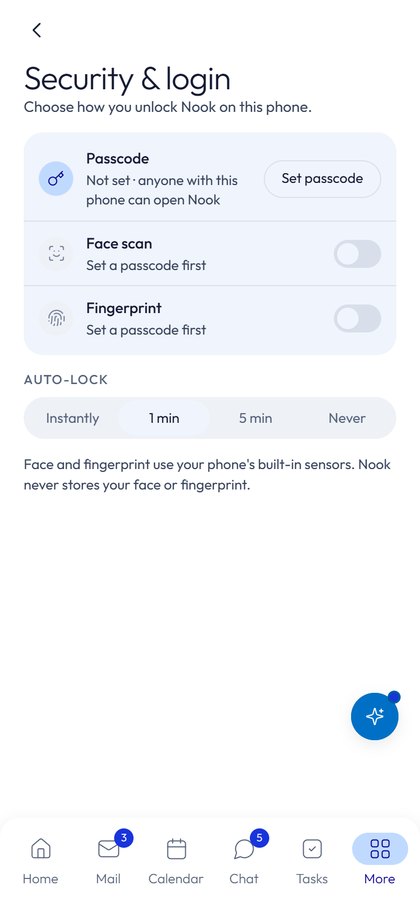
- Open More › Security and login.
- Tap Set passcode and choose a code.
- Choose Auto-lock: Instantly, 1 min, 5 min or Never.
- Turn on Face scan or Fingerprint if your phone has it.
What stays private: your notes (only you), confidential chats (only the people in them), your email passwords (Nook never sees them) and your face or fingerprint (they stay on your phone).
For admins
Run your group
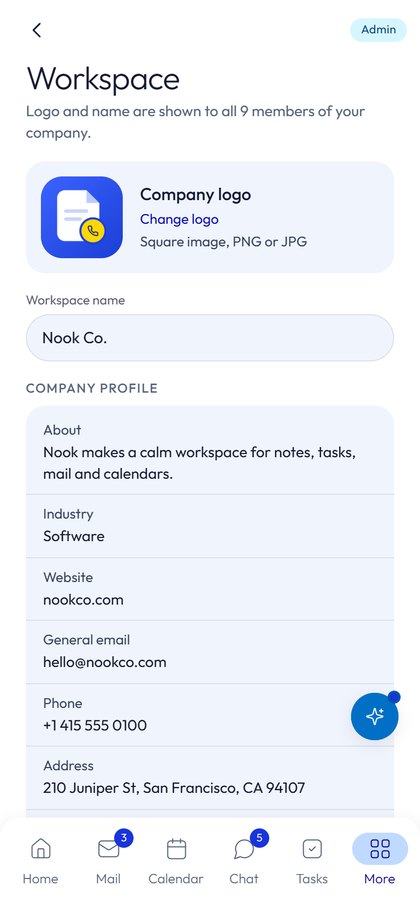
Open More, then tap your group's name.
| Setting | What it does |
|---|---|
| Invite people | Share your group's invite code. You can change the code any time. |
| Logo and name | Shown to everyone in the group. |
| Teams | Create teams, set who can post and add members. |
| Roles | Make someone an admin or a member. |
| Attendance | Who is in, remote, on leave, sick or off. Tasks skip people who are away. |
| AI settings | Choose what Nook AI may read for the whole group. |
Free and Plus
Plans and billing
| Free | Plus | |
|---|---|---|
| Price | S$0 | S$4.98 a month or S$39.98 a year |
| Free trial | - | 7 days |
| Groups | 1 | Unlimited |
| People per group | Up to 5 | Up to 20 |
| Finished task history | 30 days | Unlimited |
| Nook AI | 10 a day | 100 a day |
| Photos and files | Limited | Yes |
- The admin opens More and chooses Plus.
- Pick monthly or yearly and start the 7-day free trial. Everyone in the group gets Plus.
- To cancel: Google Play › Payments and subscriptions › Subscriptions › Nook. New phone? Tap Restore purchases.
Nothing is ever deleted. If Plus ends, the group goes back to Free limits and keeps its data.
Planned prices. They may change before launch.
Help
Something's not right?
| Problem | What to try |
|---|---|
| I can't send a task to someone | They may be on leave, sick or off. Try again when they're back, or pick someone else. |
| Nook AI can't reach the assistant | Check your internet and try again. If it keeps happening, tell your admin. |
| Nook AI says I've reached today's limit | Free groups get 10 requests a day. It resets tomorrow, or your admin can upgrade to Plus. |
| I forgot my passcode | Ask your group admin to help reset your sign-in. |
| No notifications | Phone Settings › Apps › Nook › Notifications: make sure they're on. Check Do Not Disturb too. |
| The app looks out of date | Update Nook in the Google Play Store. |
| Something looks wrong | Close Nook completely and open it again. Still wrong? Contact support with a screenshot. |